Buying Flow
This page explains how a broker buys inventory from the WeList B2B section.
The flow is designed to be simple: find the event, choose the quantity, review the available stock, inspect the ticket lot, then send an inquiry.
B2B buying flow
Step 1: Search for an event
Brokers can search for the event they want to buy inventory for.
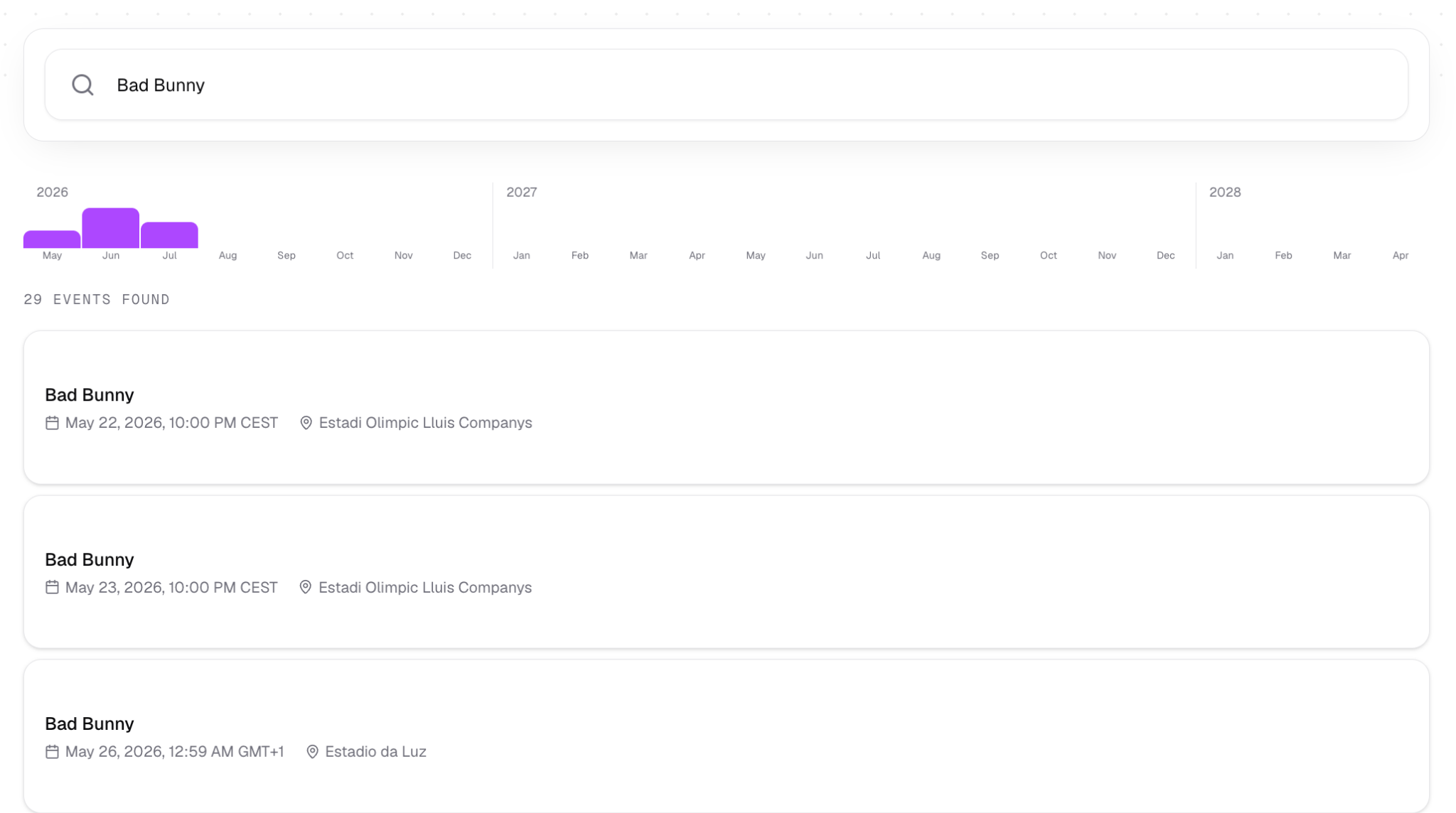
Use search when you already know what event you want.
Use the overview sections when you want to discover what is currently hot, moving fast, or coming up soon.
Step 2: Choose how many tickets you need
After selecting an event, WeList asks how many tickets the broker is looking for.
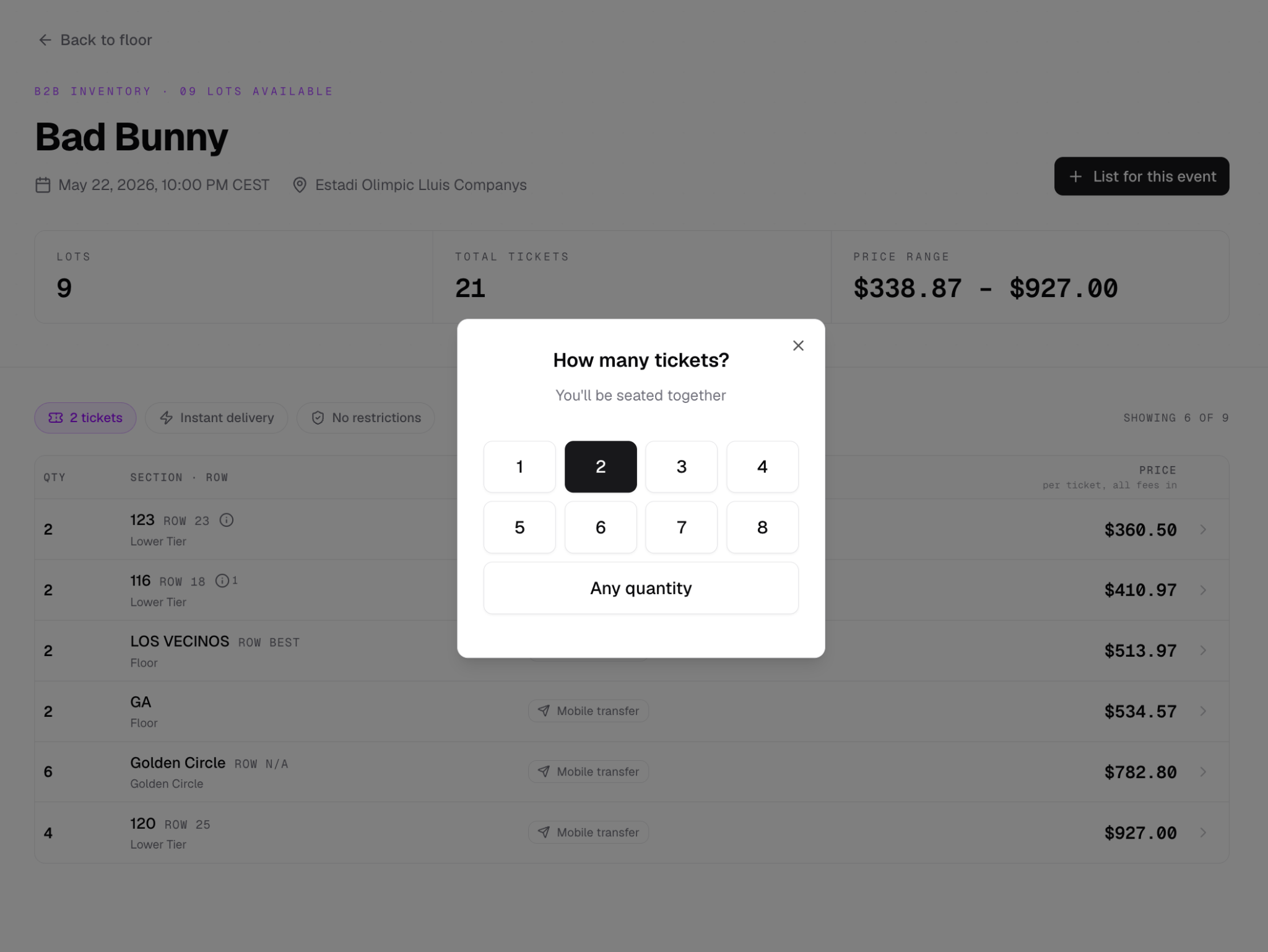
This helps filter the available inventory and makes it easier to find ticket lots that match the broker’s need.
Step 3: Review available stock
Once the quantity is selected, the broker sees all available stock for that event.
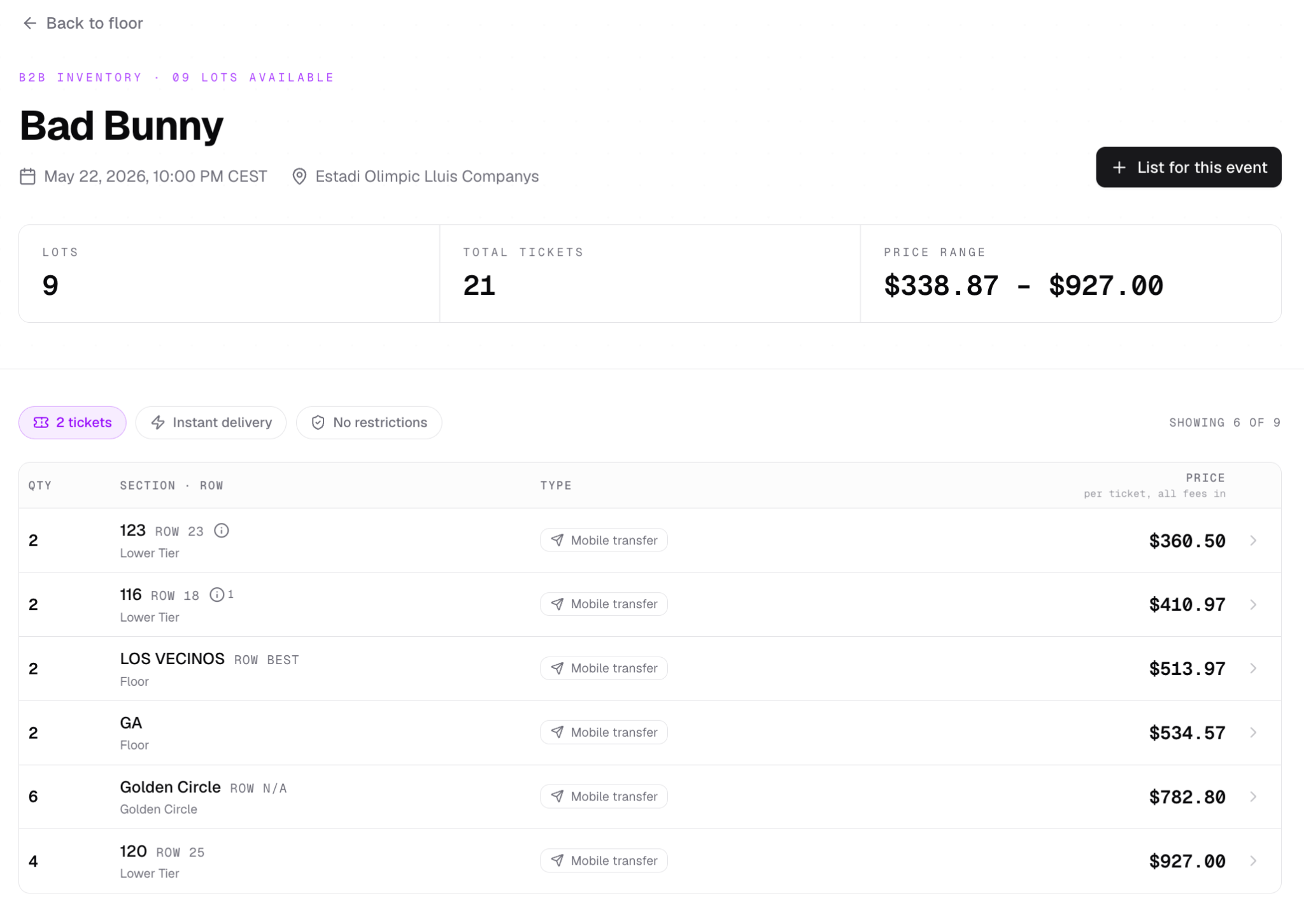
Before choosing a lot, check:
- Section
- Row
- Quantity
- Price
- Ticket type
- Transfer method
- Restrictions, if any
Step 4: Open the ticket lot
When the broker finds tickets that look interesting, they click the ticket lot.
WeList opens a side panel with the purchase preview.
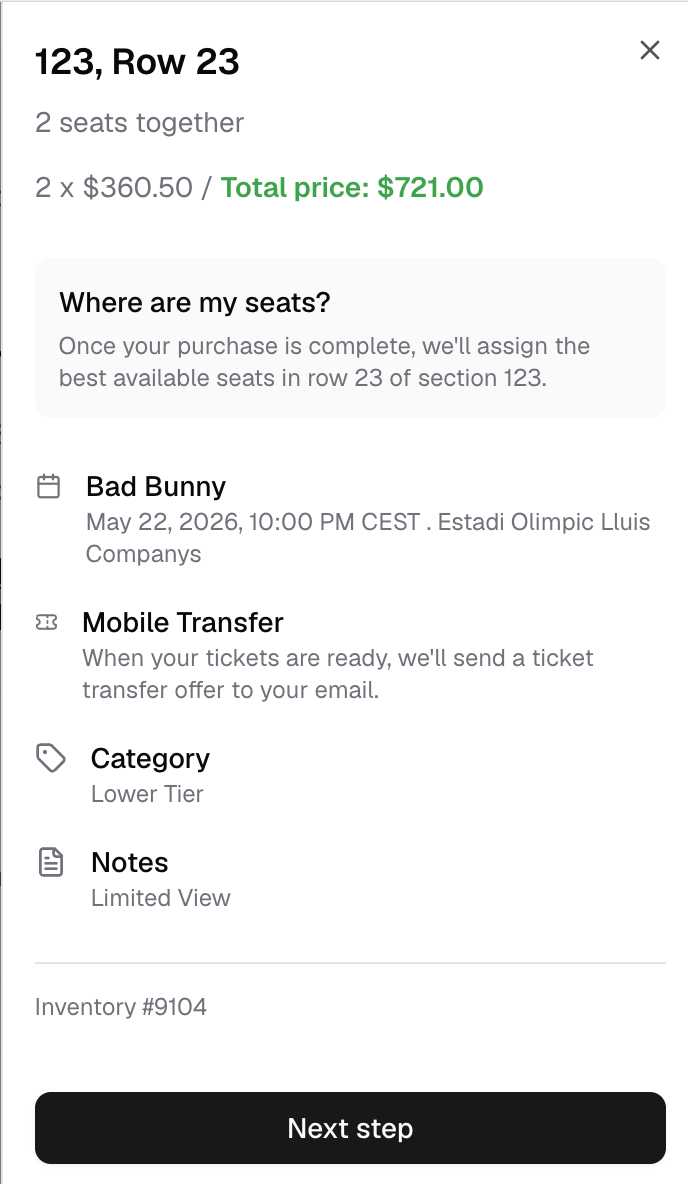
The broker should review:
| Detail | Why it matters |
|---|---|
| Event details | Make sure the event date, venue, and time are correct |
| Ticket information | Confirm section, row, quantity, and seat details |
| Transfer method | Understand how the tickets will be delivered |
| Restrictions | Check whether the tickets have any limitations |
| Price | Confirm the expected purchase amount before sending the inquiry |
If everything looks correct, click Next step.
Step 5: Send the inquiry
After clicking Next step, WeList opens the inquiry popup.
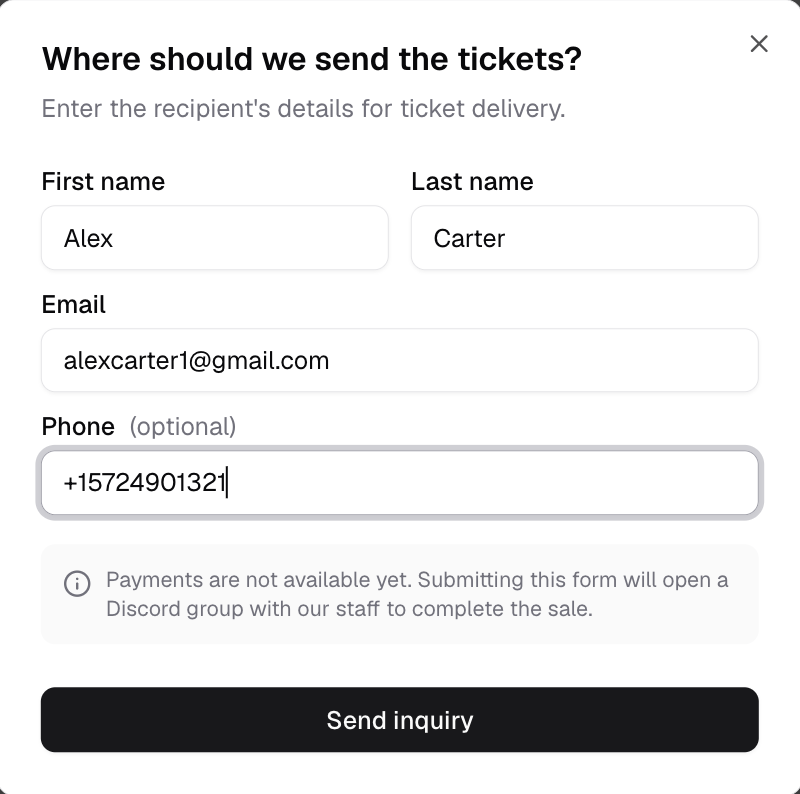
The broker must enter and verify their information before submitting.
Before clicking Send inquiry, check that:
- Name and contact details are correct
- Requested ticket quantity is correct
- Event and ticket details match the desired purchase
- Any required buyer information is accurate
Once everything is correct, click Send inquiry.
What happens after Send inquiry
When the broker sends the inquiry, WeList automatically opens a Discord ticket.
That ticket connects:
- The broker
- WeList Staff
- The purchase request information
WeList Staff will use the ticket to confirm the payment method and help complete the purchase process.
The broker must have the Broker role on Discord. This role can be connected from WeList account settings: we-list.com/settings.
Payment and ticket delivery
After the inquiry is sent:
- WeList Staff confirms the purchase details inside the Discord ticket.
- The broker confirms the payment method with WeList Staff.
- Once payment is confirmed, the purchase is created.
- The broker waits for ticket delivery.
- WeList Staff notifies the broker inside the same Discord ticket when delivery is completed.
The broker does not need to manually chase the seller outside the flow. The Discord ticket keeps the purchase conversation organized in one place.
Next step
Next: Purchases.