KYC Verification
KYC verification is mandatory before a broker can publish listings on WeList.
After creating an account, the broker must complete the verification flow in this order:
- Add an address in WeList settings
- Complete identity verification with Veriff
- Upload proof of address for WeList review
Identity verification is handled by a third-party provider. WeList does not review or store the identity documents submitted during that third-party KYC flow.
Proof of address is reviewed by the WeList team and must meet the requirements listed below.
Brokers cannot list tickets until identity verification and proof of address are completed and approved.
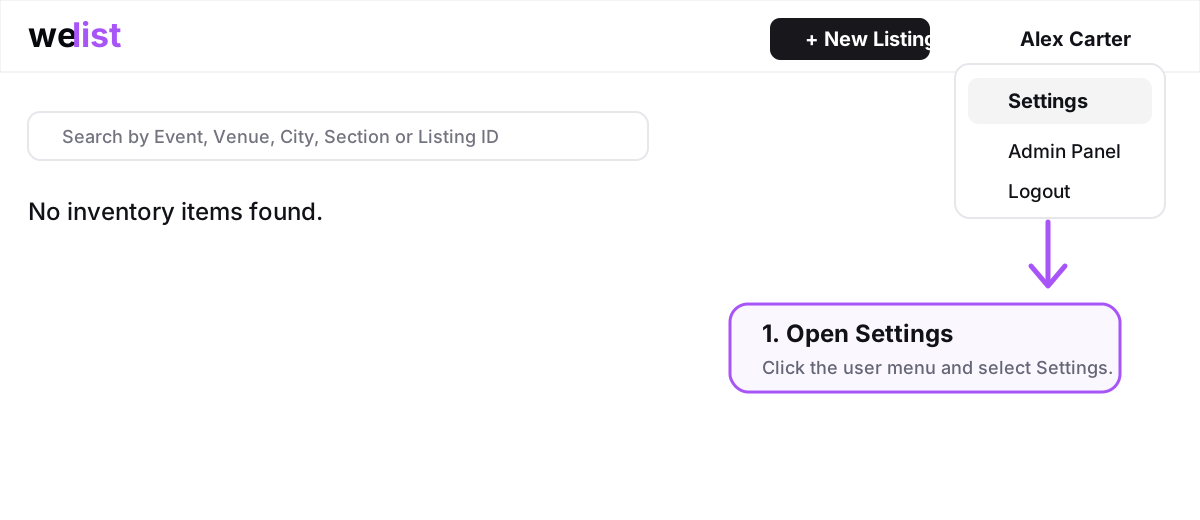
1. Open Settings
After logging in, open the user menu in the top-right corner and select Settings.
This is where the broker can manage account details, address information, account security, and identity verification.
2. Add your address
Before starting KYC, add the broker address in the account settings.
The address should match the information that may appear on the proof of address document.
Example using fake data:
| Field | Example |
|---|---|
| Address Line 1 | 42 Market Street |
| Address Line 2 | Suite 8B |
| City | New York |
| State/Province | New York |
| Postal Code | 10001 |
| Country | United States |
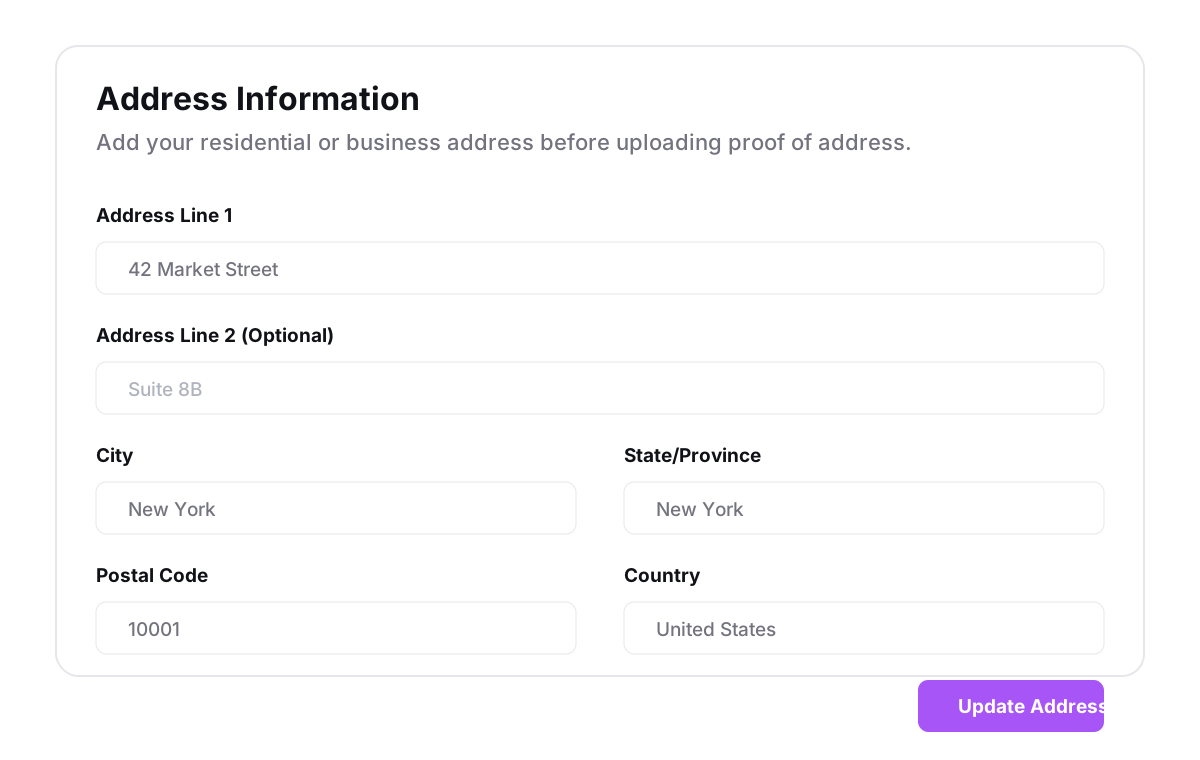
After filling in the address, click Update Address.
3. Start identity verification
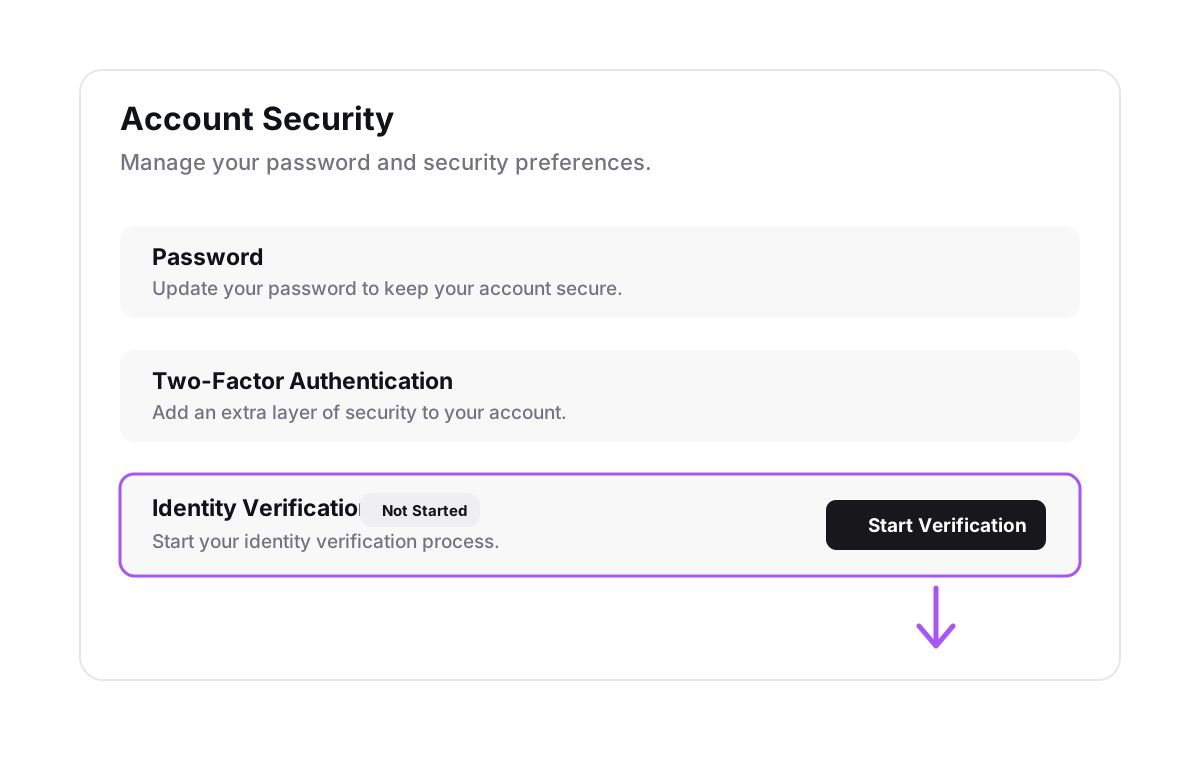
In Settings, go to Account Security and find Identity Verification.
If the status is Not Started, click Start Verification.
4. Complete verification with Veriff
WeList uses Veriff, a third-party provider, for identity verification.
The identity document flow is managed by Veriff. WeList does not review the documents submitted during this identity verification process.
The broker should prepare:
- A valid identity document
- A smartphone
- A clear camera
- Good lighting
The Veriff flow may ask the broker to scan a QR code and continue on a mobile device.
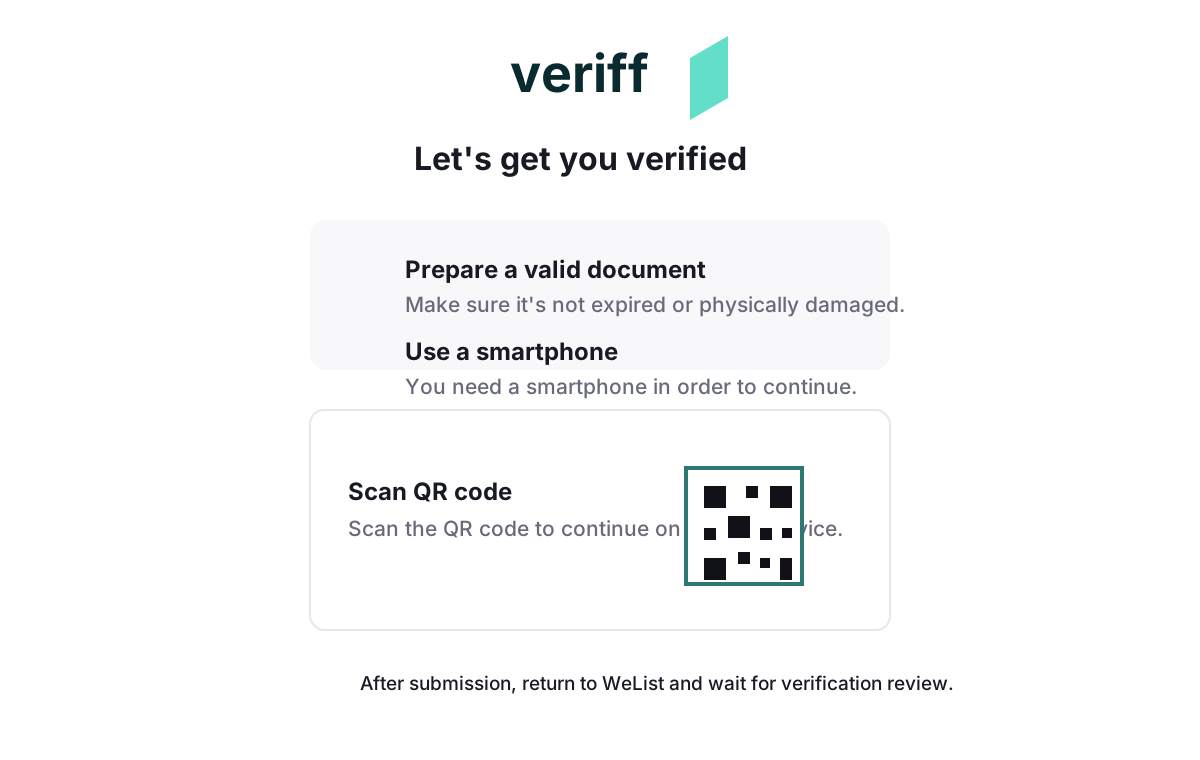
Keep the desktop window open while completing the mobile verification flow.
5. Submit identity verification
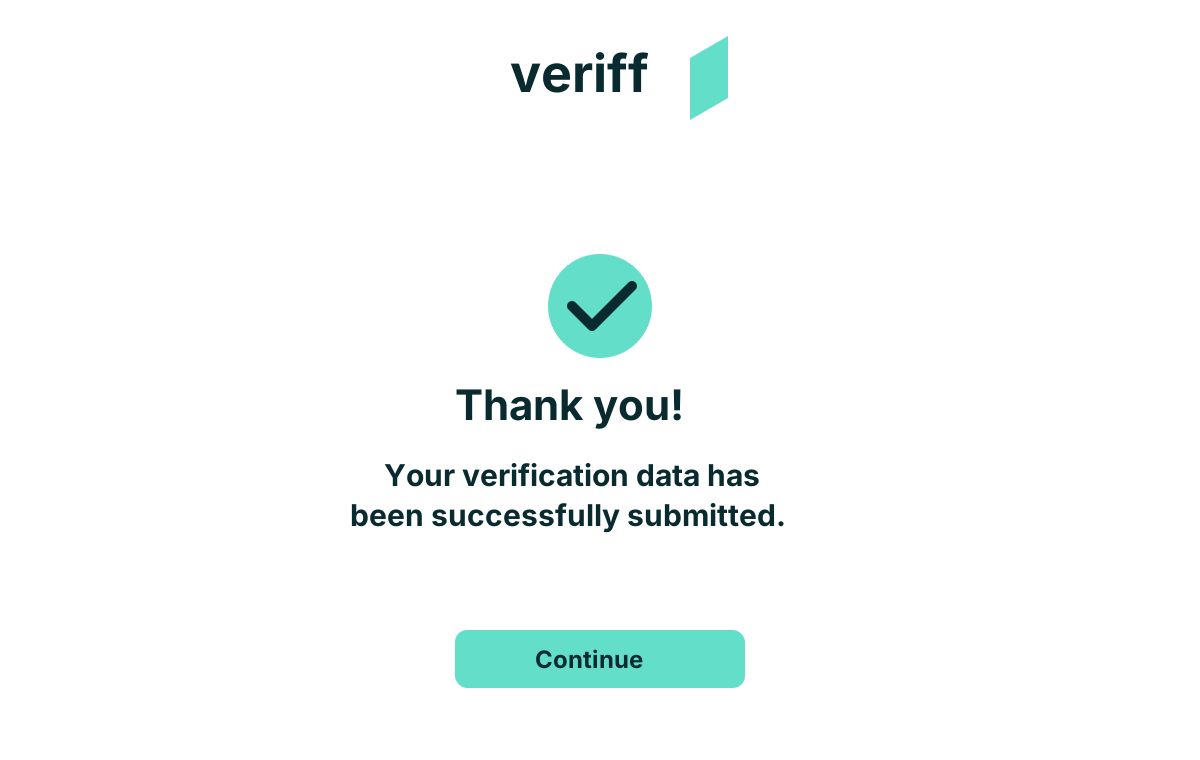
After the broker completes the Veriff flow, the verification data is submitted through the third-party provider.
6. Upload proof of address
After completing the Veriff identity verification flow, the broker must upload proof of address for WeList review.
To submit proof of address, go to:
https://www.we-list.com/settings
Make sure the address is already filled in, then upload the proof of address document.
The proof of address document must confirm the same personal residential address saved in WeList.
Accepted documents
Please provide one of the following:
- Bank statement from a traditional bank
- Official document, such as a utility bill or equivalent
Neobanks, Revolut, and similar providers are not accepted for proof of address.
Requirements
The document must show:
- The broker's full name
- The broker's personal residential address
Company addresses are not accepted.
Use the same address format in WeList and on the proof of address document to reduce review delays.
If proof of address is declined, it means the document did not meet the requirements. Submit a different document that shows your full name and personal residential address.
Our team will review proof of address within 24 hours of submission.
Once proof of address is accepted, the status should show as Verified.

Verification status
The identity verification and proof of address status may show different states:
| Status | Meaning |
|---|---|
| Not Started | The broker has not started identity verification |
| In Review | Verification or proof of address was submitted and is being reviewed |
| Verified / Approved | KYC or proof of address is complete |
| Rejected | Verification failed or additional information is required |
If proof of address is rejected, submit a different accepted document. If identity verification is rejected, follow the instructions provided by the third-party verification flow.
After KYC and proof of address approval
Once identity verification and proof of address are approved, the broker must add a payment method before listing.
Next step: Payment Method.