Create a Listing
In WeList, inventory creation and listing creation are part of the same workflow.
A broker creates the ticket listing, selects the event, enters the seat and pricing details, and then decides whether the listing should go live immediately or be saved on the platform for later.
Before creating listings, the broker must complete KYC, proof of address, Payment Method, and Payout Method setup.
At the end of the flow, the broker can choose:
- Publish immediately: the listing goes live and can be broadcast to supported marketplaces.
- Save as draft: the listing is saved inside WeList and can be published later.
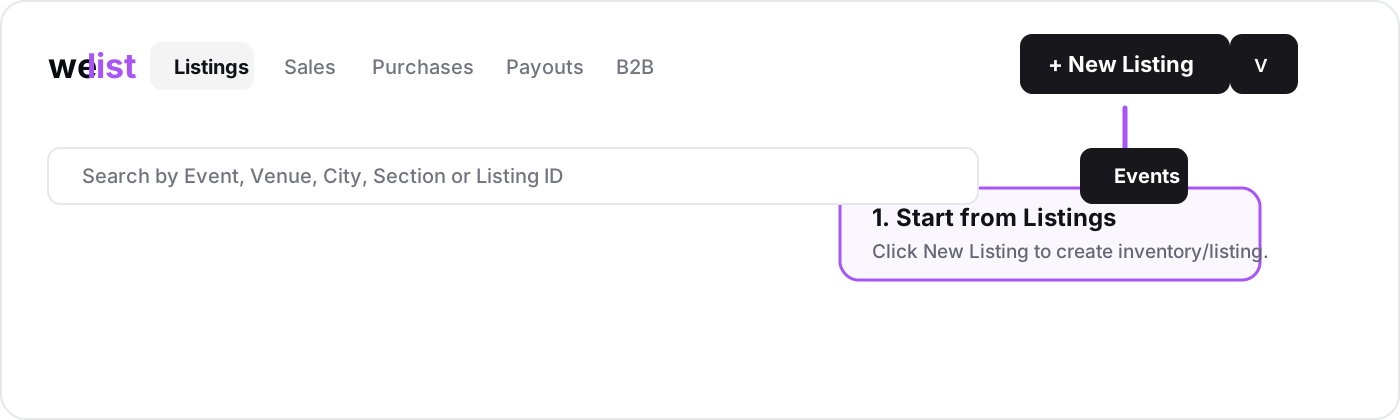
1. Start a new listing
Open the Listings section and click New Listing.
This starts the listing creation flow.
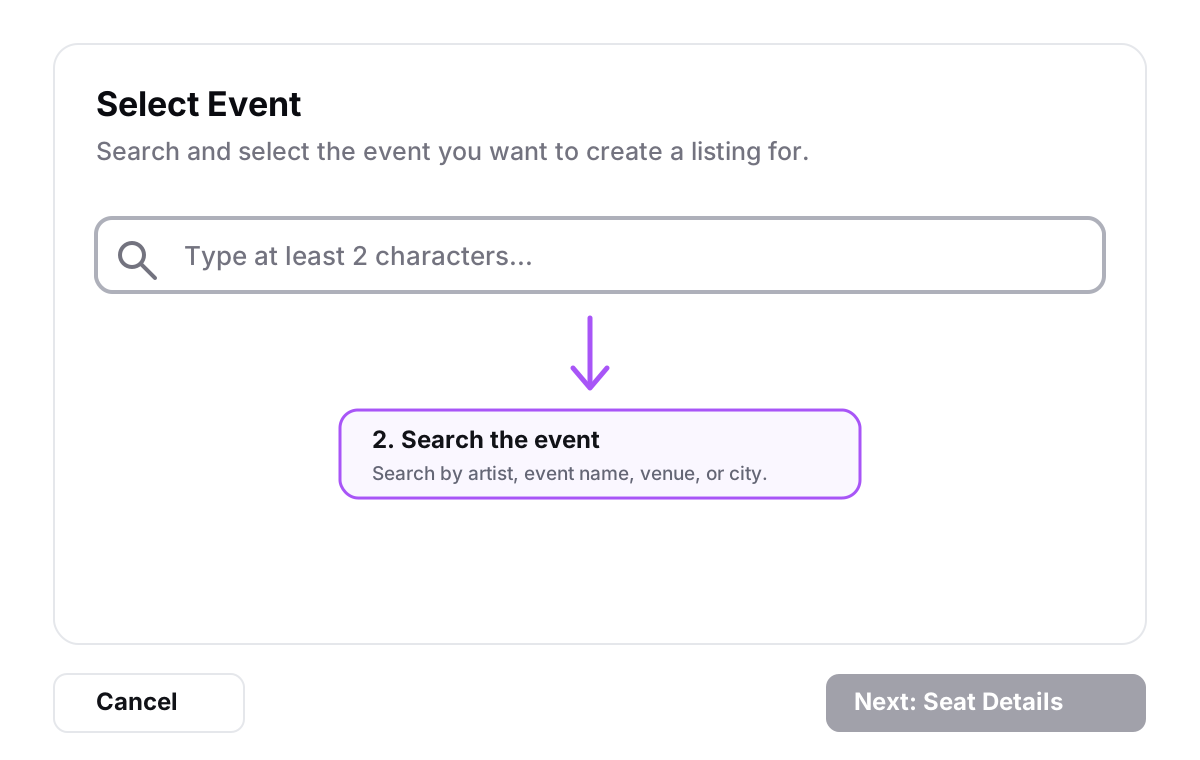
2. Search for the event
The first step is selecting the event connected to the tickets.
Use the search field to look up the event by:
- Artist or event name
- Venue
- City
You must type at least 2 characters before event results appear.
3. Select the correct event
After searching, WeList shows matching events.
Before clicking Select, carefully check:
- Event name
- Date and time
- Venue
- City
- Supported platforms shown for that event
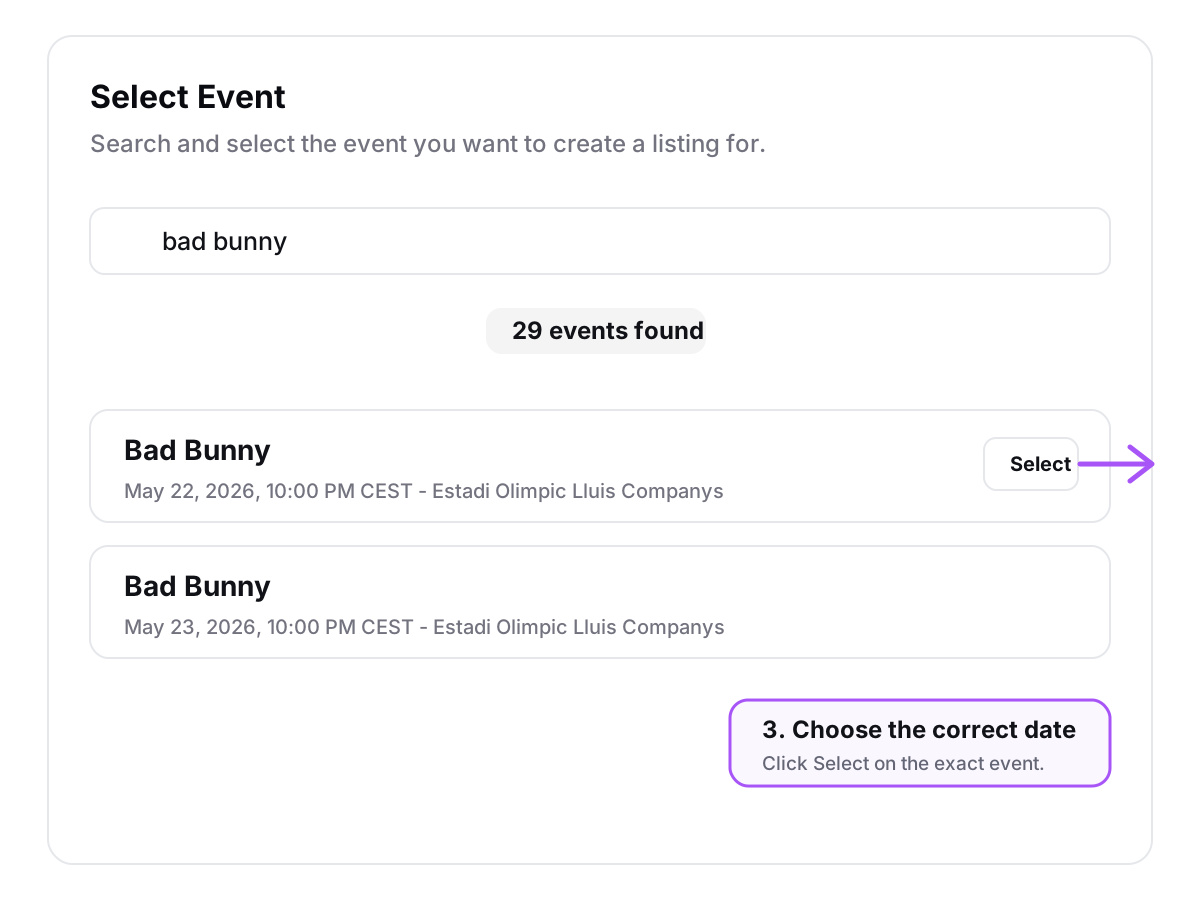
Once selected, WeList shows an event confirmation card. If the wrong event was selected, click Change before continuing.
4. Enter ticket details
After selecting the event, enter the ticket information.
The ticket details usually include:
| Field | What to enter |
|---|---|
| Quantity | Number of tickets available |
| Section | Ticket section, such as Floor or Block 102 |
| Standing | Enable this if the ticket is standing/GA |
| Row | Ticket row, or GA if general admission |
| Split Type | Whether buyers can purchase any quantity or only specific splits |
| Ticket Type | Delivery type, such as Mobile Transfer |
| Restrictions | Any restrictions required by the marketplace or event |
| Face Value | Original value per ticket |
| Listing Price | Selling price per ticket |
| Notes | Optional internal or delivery notes |
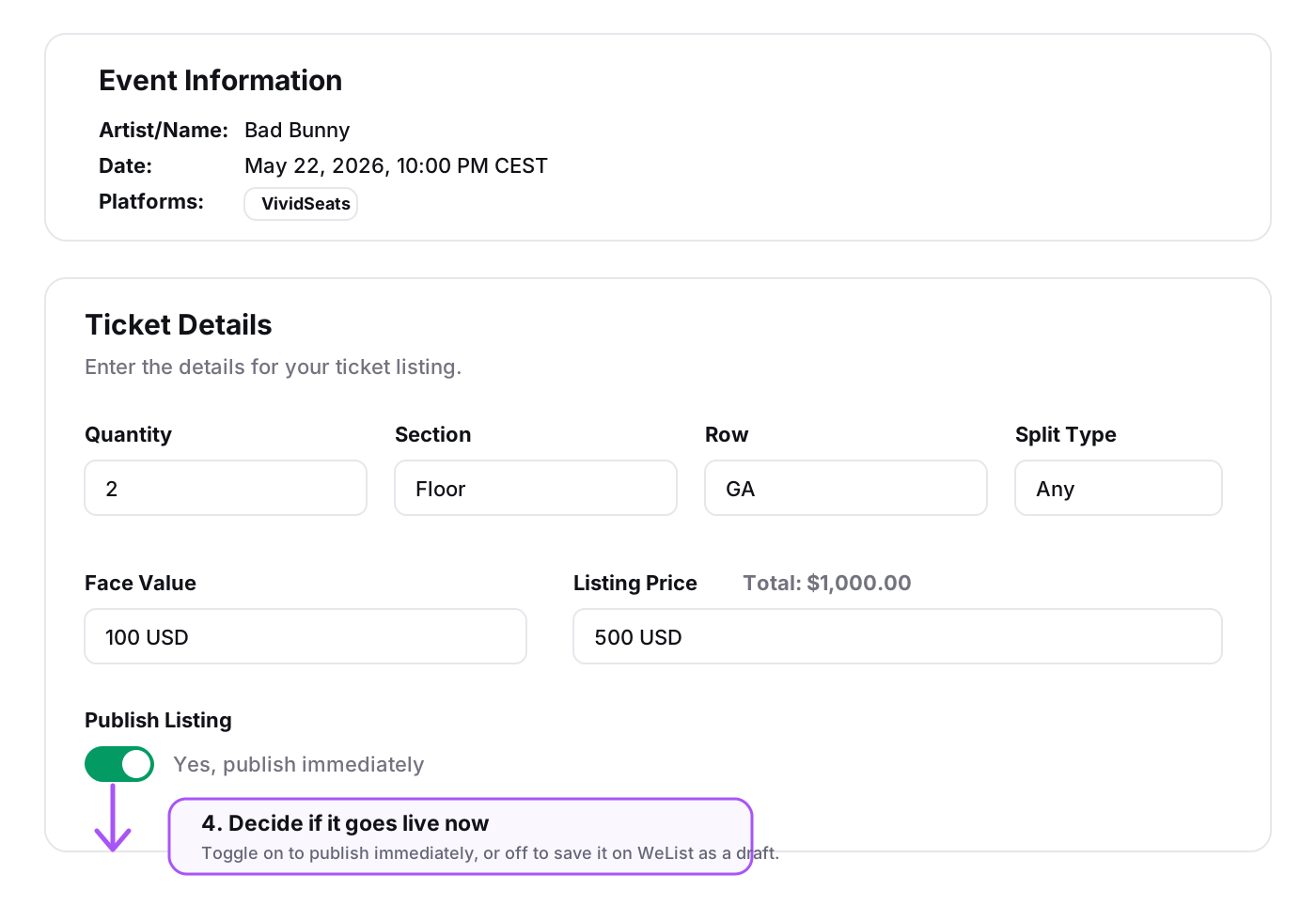
5. Choose publish now or save for later
The Publish Listing toggle is the key decision at the end of the ticket details step.
| Toggle state | Result |
|---|---|
| On | The listing is created and published immediately |
| Off | The listing is saved inside WeList and can be published later |
Use Publish immediately only when the listing details are final and the broker is ready for the inventory to go live on supported channels.
Use Save as draft when the broker wants to prepare the listing first and publish it later.
Before publishing, double-check quantity, section, row, delivery type, and price. Incorrect listing details can create fulfillment issues after a sale.
6. Review and create the listing
Before creating the listing, review the summary page.
Check:
- Event information
- Ticket details
- Platform details
- Pricing summary
- Potential payout
- Delivery requirements
- Publish status
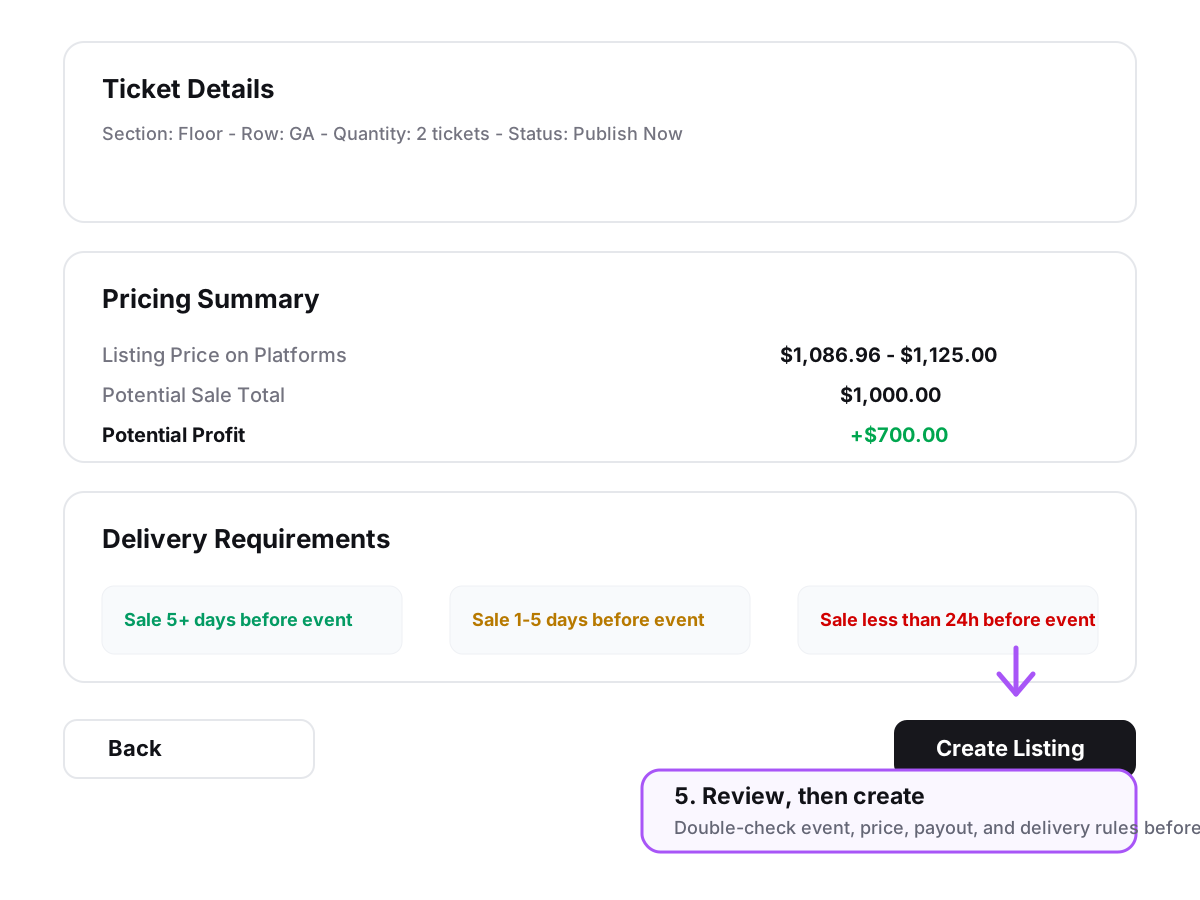
When everything is correct, click Create Listing.
Important notes
- If the listing is published immediately, it can become available across supported marketplaces and the WeList B2B section depending on account configuration.
- If the listing is saved as draft, it remains inside WeList until the broker decides to publish it.
- Stock synchronization starts after the listing is live and sales are confirmed.
- Delivery responsibility remains with the broker after a sale is confirmed.