Manage Listings
Listing workspace
Monitor every listing from one place
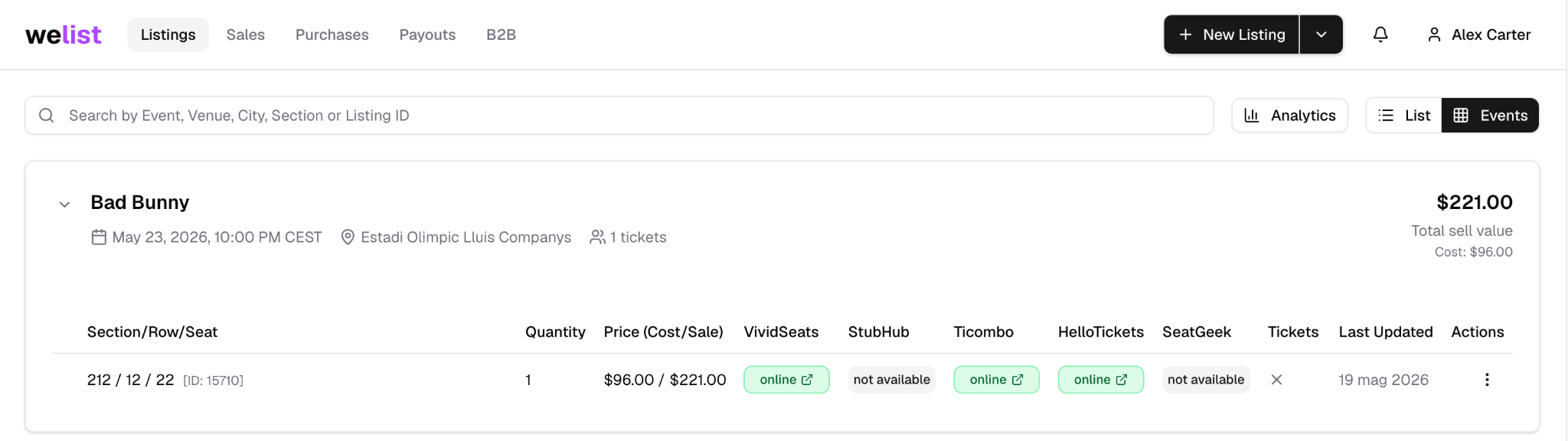
Use the Listings page to review created inventory, track marketplace availability, adjust pricing, and choose the view that fits the way you work.
Compare listing views →After creating listings, brokers can return to the Listings page to review everything that has been created.
What the Listings page shows
The Listings page helps brokers check:
| Area | What it shows |
|---|---|
| Event details | Event name, date, time, venue, and listing ID |
| Seat details | Section, row, and seat information |
| Quantity | Number of tickets listed |
| Price | Cost and sale price |
| Marketplace status | Whether the listing is online, unavailable, or needs review |
| Last updated | When the listing was last changed |
| Actions | Listing options and management menu |
Listing views
WeList supports two main ways to view listings.
Group inventory by event
Best when you want to understand inventory at event level and quickly compare what is live across marketplaces.
- See all inventory for the same event together
- Expand or collapse event groups
- Compare total sell value by event
- Review marketplace availability for each event
Scan every listing chronologically
Best when you want a table-style view of every created listing, especially when checking recent updates or row-level marketplace status.
- Scan all listings quickly
- Review listings in chronological order
- Compare marketplace status row by row
- Find recently updated listings

Search and filters
Use the search bar to find listings by:
- Event
- Venue
- City
- Section
- Listing ID
This is useful when a broker has many active listings and needs to quickly locate a specific item.
Marketplace status
Marketplace status badges help brokers understand where each listing is currently available.
Common examples:
| Status | Meaning |
|---|---|
| Online | Listing is live on that marketplace |
| Not available | Listing is not available on that marketplace |
| Error | Listing needs review |
| Pending | Listing is being processed |
Fast price edit
When only the sale price needs to change, brokers can update it quickly from the listing row without opening the full listing editor.
Use fast price edit when you need to:
- React to market demand
- Adjust the sale price after checking other marketplaces
- Keep the same event, seats, quantity, ticket type, and restrictions
- Save time when only pricing changes
After changing the price, always review the marketplace status badges to confirm the listing is still online where expected.
Listing actions
Each listing row has an actions menu, usually shown as three dots.
From this menu, the broker can manage the listing without creating it again from scratch.
Common actions include:
| Action | What it does |
|---|---|
| Edit listing | Update listing details such as pricing, availability, restrictions, or other editable fields |
| Clone listing | Create one or more new listings from an existing listing |
| Unpublish listing | Un-broadcast your tickets from all marketplaces and keep them only into WeList inventory |
| Delete listing | Remove the listing from all marketplace and this will also remove the inventory from WeList |
Clone a listing
Cloning is useful when a broker has multiple tickets for the same event, but the tickets are not identical.
For example, a broker may have tickets for the same event with:
- Different sections
- Different rows
- Different seats
- Different restrictions
- Different quantities
- Different list prices
When cloning a listing, each row becomes a new listing. The broker can adjust section, row, seats, restrictions, pricing, cost, and quantity before creating the cloned listings.
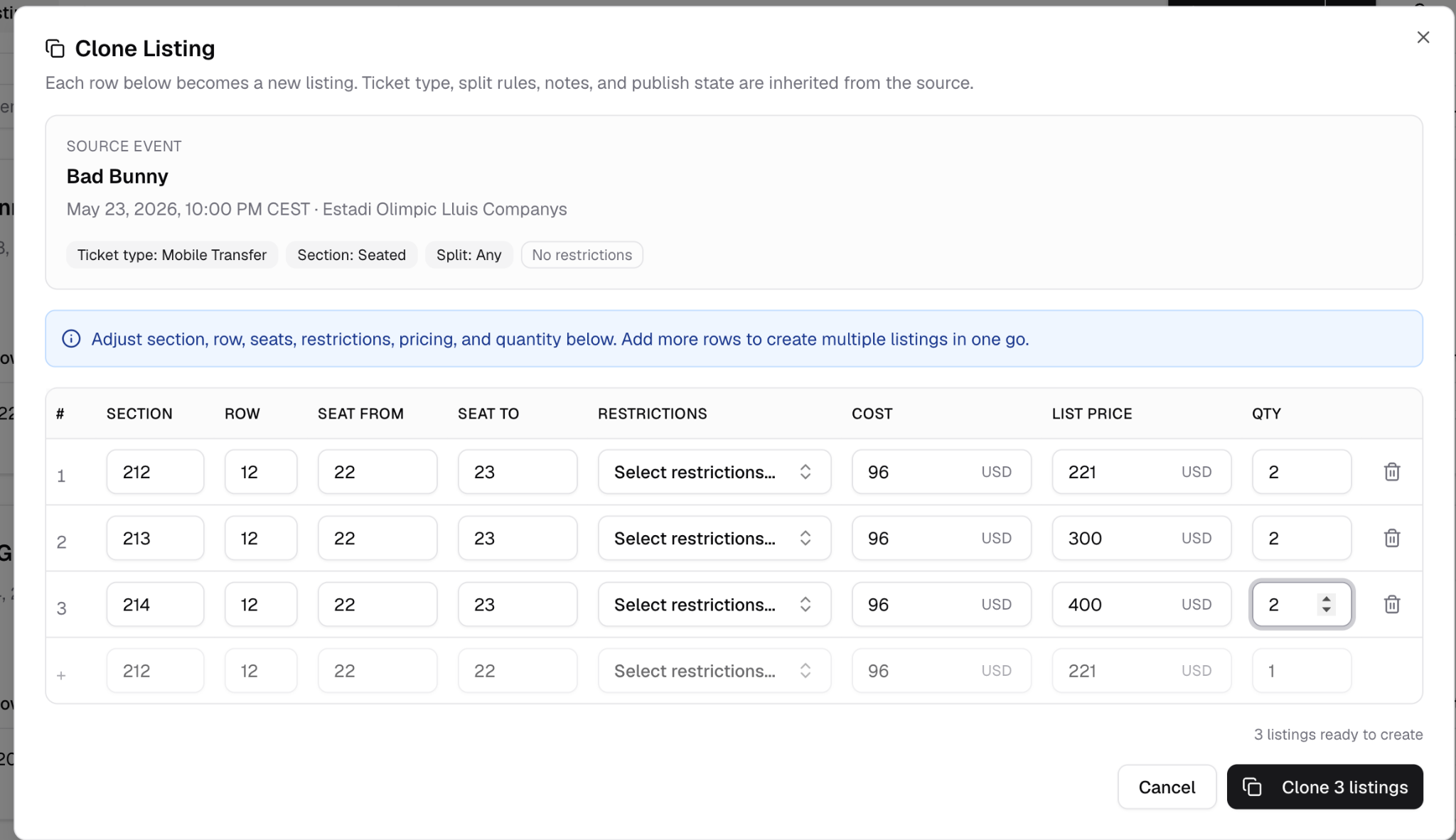
Clone Listing is faster than starting from zero when the event is the same but the ticket details are different.
Next step
Once listings are live, monitor sale notifications and sale status.
Next: Sales Overview.